
Wireless Casting
Connecting to the WiFi
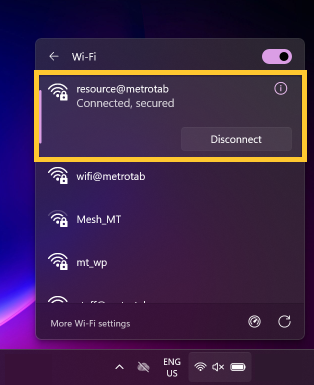
Connect to the resource@metrotab WiFi with the password you were given.
Casting from Windows
Step 1
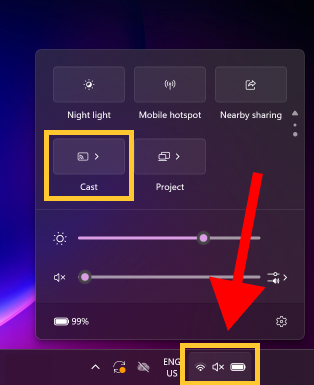
On the bottom-right of your screen, click the icons region to open the following menu.
Then, click "Cast".
If you do not see a "Cast" button, you may need to scroll down or click the edit button (a pencil icon) to add the button.
Step 2
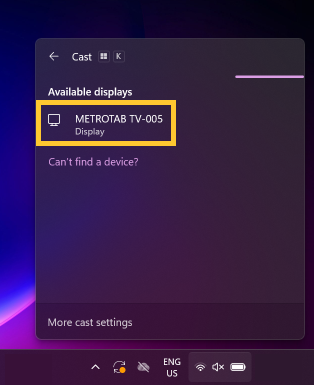
You will see a display called "METROTAB TV-005". This the name of the 75" Samsung TV.
Click to select this display.
Step 3
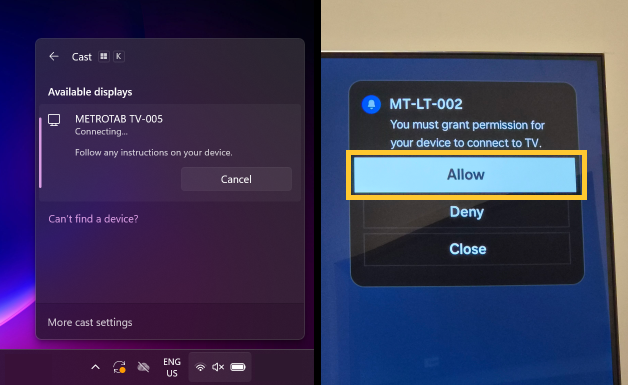
On the TV, you will see a pop-up menu on the top-right.
Use the arrow keys on the TV remote to select "Allow".
You may need to wait a few seconds for Windows to start wirelessly displaying on the TV.
Step 4
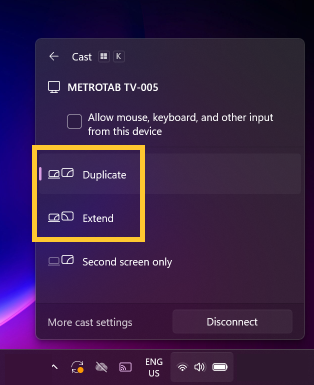
Once connected, choose either "Duplicate" or "Extend" depending on your preference or use case.
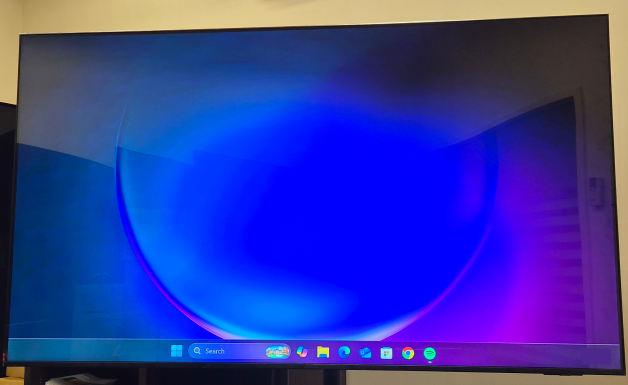
Your Windows screen will now be shown on the TV.